Gemini
Gemini Is Free for Students for a Year: How to Claim It and What Omni Can Do
Google is giving college students a year of Google AI Plus at no cost, Gemini Omni included, claimable until 31 December 2026. Who qualifies, the claim steps, the fine print, what Omni can do with a sentence, and 30 prompts to start with.
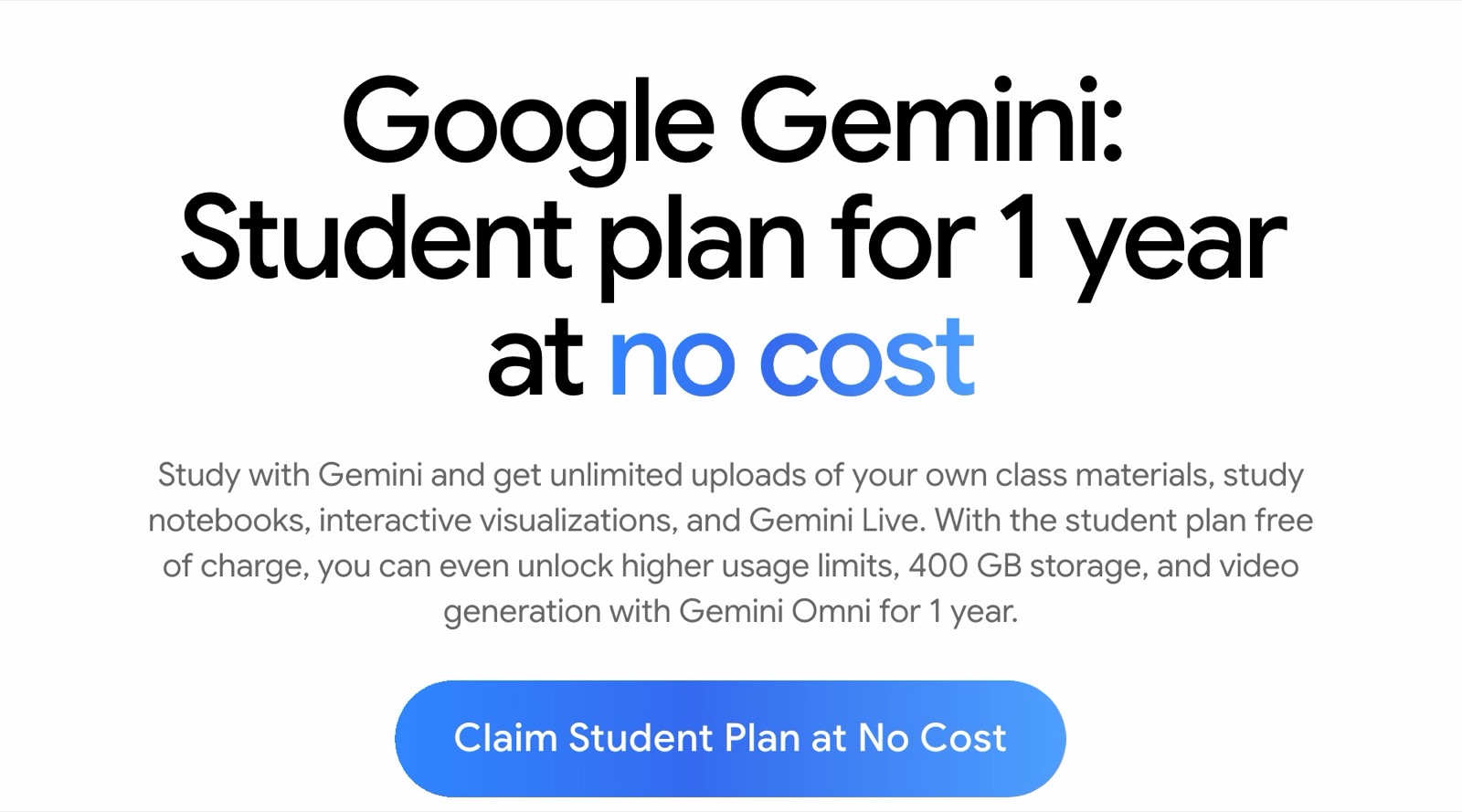
Google is giving college students aged 18 and over a full year of its paid Google AI Plus plan at no cost, and you have until 31 December 2026 to claim it. The plan includes Gemini Omni, Google's model that edits a video when you describe the change, plus double the usage, 400 GB of storage and unlimited uploads of your class materials.
So there are really two things in one offer. The plan is the study side, and Omni is the part people are making videos with. I'll go through both, from who qualifies and how to claim it to what Omni can actually do, with thirty prompts at the end.
What does the Gemini student plan include?
The student page spells it out in one line.

Gemini Omni is the headline, and it gets its own sections further down. 2x higher usage limits means twice what a Gemini user without a paid plan gets, per Google's own footnote. 400 GB of cloud storage is room for every lecture recording and project file you'll make in a year. And unlimited uploads for study notebooks is the part the second video was about.
A study notebook is what Gemini builds when you hand it your own course material. You drop in lecture notes, PDFs, a photo of your handwritten notes or the syllabus, and ask it to help you learn the topic.
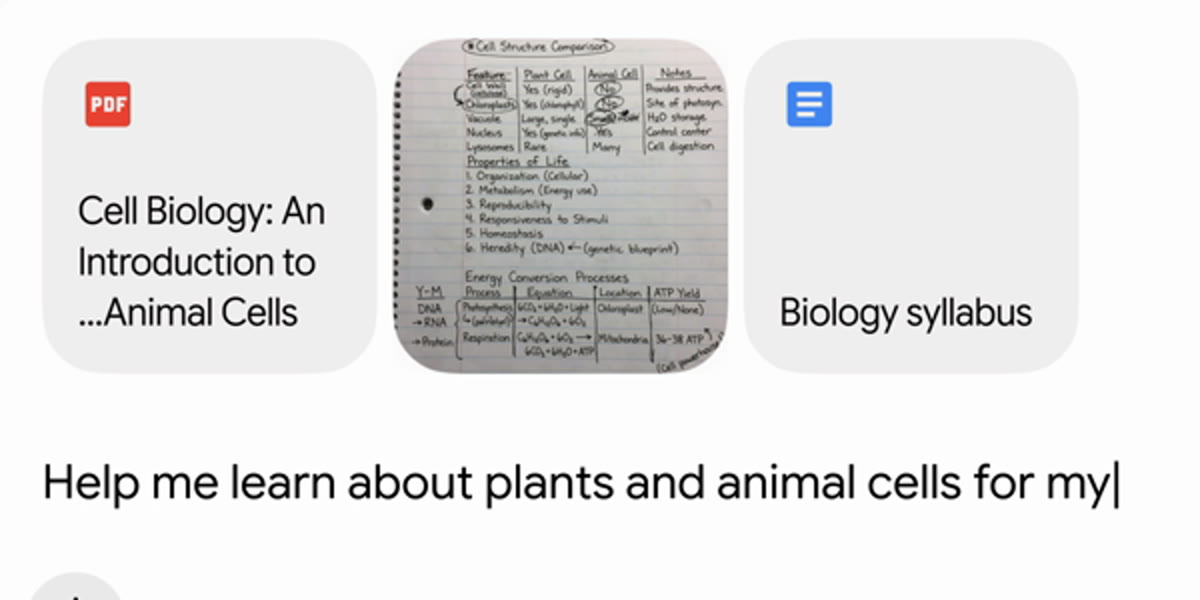
Then it sets up the notebook. Per Google's launch post and the student page, it offers a diagnostic quiz to find your gaps, builds bite-sized lessons and quizzes around them, tracks your progress, and creates what Google calls "a learning plan tailored to you", which is a revision plan in plainer words.
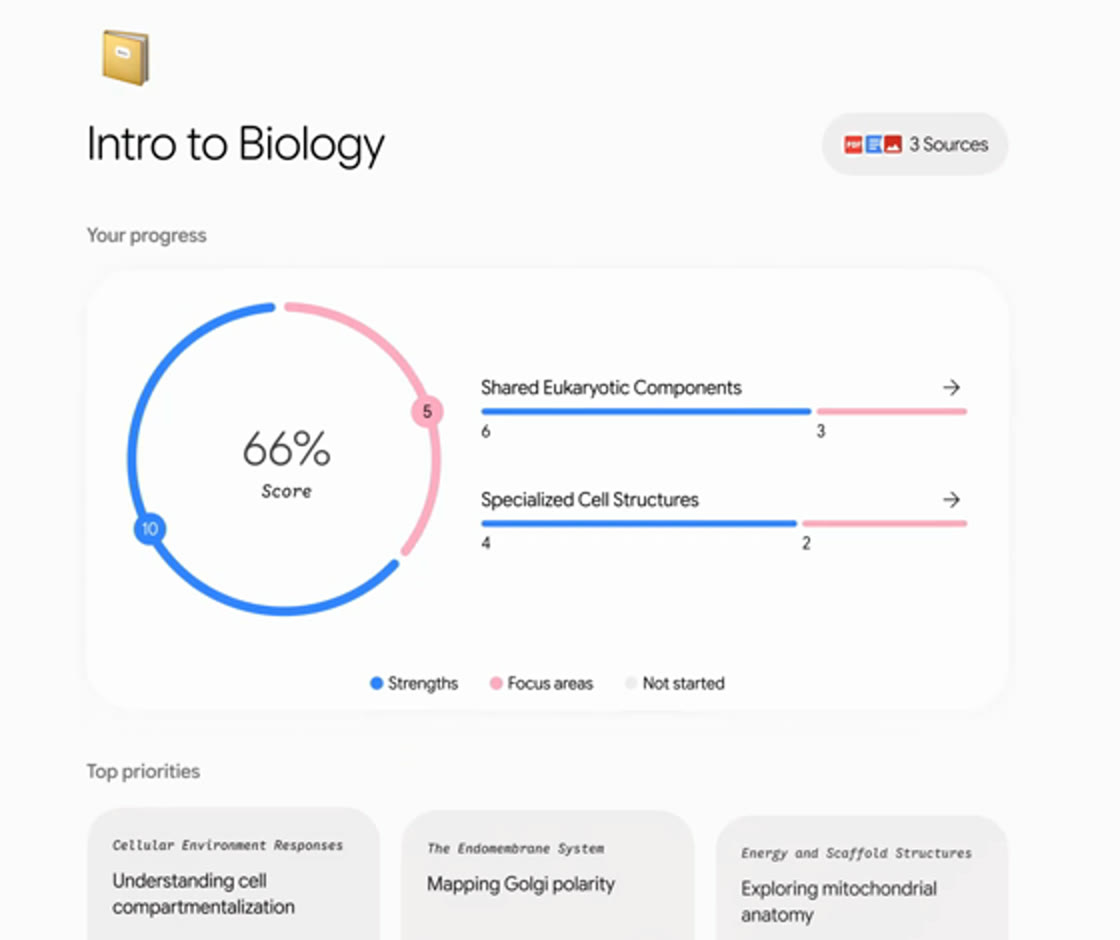
One thing to know before you get too excited about the notebooks. Google's student offer announcement says study notebooks, the student hub and interactive visualizations are rolling out to all Gemini app users, paid or not. What the plan adds is room: more notebooks with more sources, unlimited uploads, the higher limits, the storage and Omni.
Who qualifies for the free year, and who gets a different plan?
It's for college students aged 18 and over, enrolled at a higher education institution, in more than 140 markets. You verify your student status once at sign-up, and Google's FAQ says eligibility has to be verified each year to keep access. Students whose 2025 AI Pro trial has expired can claim it too.
But read the exceptions before you start, because a few of them catch people out.
If you're in the US, you get a bigger plan instead. US students get a year of Google AI Pro at no cost, which Google values at $19.99 a month, with 4x higher usage limits, Gemini in Gmail and Docs, and 5 TB of storage. Pro subscribers get Omni too, per Google's Omni announcement. It renews at $19.99 a month after the year.
Six places are excluded altogether: Bolivia, Albania, Canada, Hong Kong, Macau and Tunisia, per the offer terms.
A few account types don't qualify either. The terms rule out anyone in a Google family group, anyone with a supervised account, and anyone who already pays for Google One through a third party such as Google Fi. The family group one catches people, because plenty of students sit in a parent's family plan without thinking about it.
How do you claim Gemini free as a student?
Three steps, and it takes a few minutes.
1. Go to the student page and press the claim button. It's at gemini.google/students, and the button reads "Claim Student Plan at No Cost". Sign in with your personal Google account. The offer terms say it isn't available on a school-issued Workspace for Education account, so your university Gmail is the wrong account to sign in with.
2. Verify that you're a student. Google runs this through SheerID, a third-party verification service, and per the terms Google may ask for more information if it needs it.
3. Add a payment method and confirm. The card is required at sign-up so the plan can roll over when the year ends. Nothing is charged during the twelve months, which start on the day you redeem.

After the year, it charges automatically. In Singapore that's SGD 6.98 a month, and Google's announcement puts it at $4.99 a month or the local equivalent elsewhere.
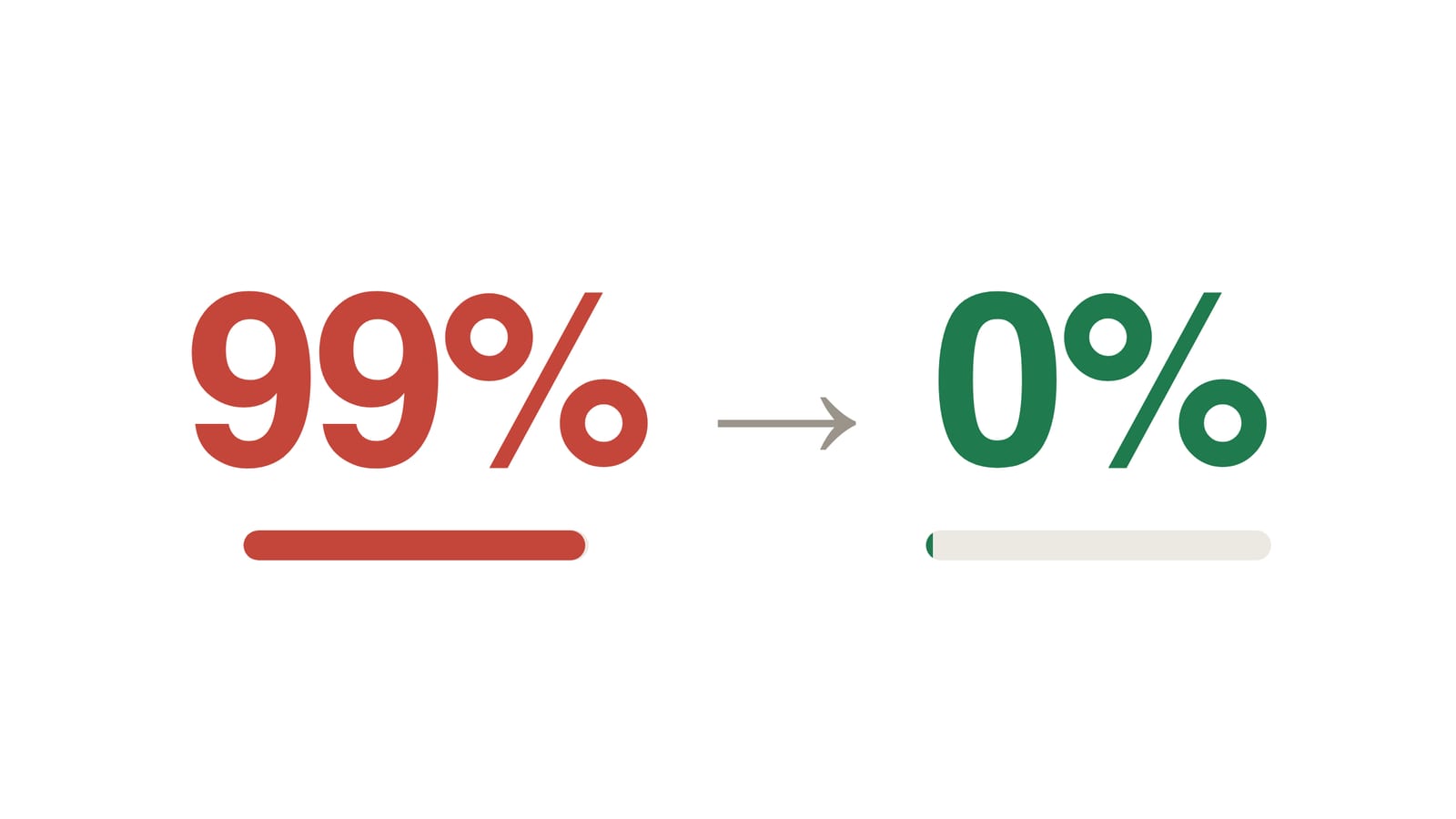
Two lines in the terms are friendlier than most offers like this. If you cancel during the free year, your membership may remain active until the end of the year, which is the opposite of the ChatGPT student offer, where cancelling early forfeits the months you had left (I covered that one here). The catch is storage. If you cancel after filling more than your free storage limit, you have to delete files or pay before you can save anything new.
So claim it, cancel early if you're the forgetting type, and keep an eye on how much you put into those 400 GB.
What is Gemini Omni?
Gemini Omni is Google's model for making and editing video from any mix of inputs: text, images, video and audio. Google announced it at I/O on 19 May 2026, describing it as "a model that can create anything from any input", starting with video. The first version, Omni Flash, is what's in the Gemini app and Google Flow for Plus, Pro and Ultra subscribers.
The short version is that you edit a video by telling it what to change.
That idea, "every instruction builds on the last", is the thing that separates Omni from the AI video tools before it. Daria Cupareanu, who wrote one of the most useful hands-on tutorials on it, put the difference well. With older models, if you wanted the lighting warmer you rewrote the prompt and regenerated from scratch, and the result was never the same twice. With Omni you say "make the lighting warmer", and it adjusts the video you already have.
There are a few limits to know up front. Clips are short, and Cupareanu lists them at 4, 6, 8 or 10 seconds. Editing the audio or speech in a video is something Google says it's still testing. And every Omni video carries Google's invisible SynthID watermark, so it can be identified as AI-made.
What can Gemini Omni actually do?
Three examples have been going around, and each one shows a different side of it.
It edits a real clip, one instruction at a time. Google's own demo is the clearest. They started with a violinist playing indoors, then typed four prompts in a row.

The four prompts were "A video of a violinist playing a song", then "Transport the violinist to the image environment", then "Make the violin invisible", then "Change the camera angle to be over the violinist's shoulder". Look at the third frame. The violin is gone, and her hands are still playing it, bow and all, with the same face and dress and field. That's the "scene remembers what came before" part working, and it's why the result looks like an edit of the same shot instead of a brand new video.
It cuts a plain talking video into a finished one. Cindie Zhu gave Omni Flash a plain talking-head clip and posted the before and after. In her words, "it did every cut, every motion graphic, even the text popping up on screen."
But one detail matters here. She ran it through Arcads, a separate AI video tool that added Omni Flash, rather than the Gemini app itself. The model is the same, but the workflow around it is hers, so treat it as what the model can do in good hands rather than a one-click button in the student plan.
It turns one product photo into a product video. Cupareanu uploaded a single photo of a Rolex and asked for a 10-second commercial-style shot, with an exploded view, floating parts and the watch reassembling at the end. Her verdict in her tutorial: "The Rolex in the video looks exactly like the one in the photo I attached." That's the one I'd pay most attention to if you sell anything, run a club stall or have a portfolio, because keeping a real object accurate is exactly where older video models fell apart.
Her tutorial is also honest about where it struggled. Editing videos she'd already generated never finished from her country, and she suspected a regional restriction. Prompts with too many scenes stalled. So run one small test in your first week rather than planning a whole project around it.
Twenty Omni prompts to start with
These are written for the 10-second reality of Omni, with one change or one idea per prompt. Paste them, then swap in your own details.
Editing a clip you filmed
- "Keep everything the same, but change the background to a quiet library at night."
- "Make the coffee cup on the table invisible, and keep my hands and the table exactly as they are."
- "Change the camera angle to over my shoulder, looking at the laptop screen."
- "Change the weather outside the window to heavy rain, and keep the lighting in the room the same."
- "Turn this clip into claymation, with the same movements and the same timing."
- "Now change only the colour of my shirt to navy, and keep everything from the last version."
Starting from one photo
- "Use this photo of my product and make a 10-second commercial-style shot: a slow turn, soft studio light, the product exactly as it is in the photo."
- "Exploded view of the object in this photo: the parts float apart, hang in the air, then click back together. 10 seconds."
- "Turn this drawing into realistic footage, using the drawing only as a guide for movement. Do not show the drawing in the final video."
- "Take this photo of my campus at dusk and make the lights in the windows turn on one by one as the sky gets dark."
- "Turn this photo of our booth into a 6-second clip of students walking up to it on a busy orientation day."
For class and presentations
- "A 10-second claymation explainer of how a vaccine trains the immune system. Everything made of clay, no hands, stop motion, accurate."
- "A slow, realistic shot of a pendulum trading energy back and forth, with a small handwritten label in the bottom corner that says kinetic and potential."
- "An opening shot for my presentation on urban heat: a slow push-in on a hot city street at noon, with the title written on a slip of paper in the bottom left."
- "Two quick scenes showing the before and after of the printing press, with a handwritten year in the corner of each."
- "A 10-second flat-design explainer of supply and demand: two curves draw themselves and meet at a price, with a clean label at the crossing point."
Clubs, events and side projects
- "A 6-second promo for our photography club's night walk: people with cameras on a lit street, ending on a slip of paper that says the date."
- "A looping 4-second background clip of slow-moving clouds over a city skyline, for the screen behind our stage."
- "Restyle this clip of our team as a 90s camcorder video, keeping the people and their movements exactly the same."
- "Keep this video exactly as it is, but add animated motion lines coming off the bicycle as it moves."
Number 20 is built on one of Google's own demo prompts, and number 12 on another. The habit worth copying from both is saying what stays the same before you say what changes.
Ten prompts for the study side
The second video promised prompts for the plan itself, so here are ten for notebooks and revision. Several of these are close to the examples on Google's own student page.
- "Here are my lecture slides and the syllabus. Build me a study notebook for this course and start with a diagnostic quiz."
- "My exam is on 2 December. Make a revision plan from these notes that fits two hours a day, hardest topics first."
- "Turn these lecture notes into a practice test, then mark my answers and tell me what I misunderstood."
- "Quiz me on the Industrial Revolution one question at a time, and don't give me the answer until I've tried."
- "This is my assignment brief and my draft. Mark the draft against each criterion and tell me which one I'm weakest on."
- "Give me an outline for this essay, one sentence per section, then stop."
- "This is a past paper. Tell me what each question is really testing underneath the wording."
- "Show me how DNA works in 3D."
- "Run a Deep Research report on the fall of the Roman Empire, and tell me which of its sources you'd trust most for a university essay."
- "Generate an Audio Overview from this reading so I can listen to it on the bus."
FAQ
Is Gemini free for students in Singapore?
Yes. Eligible college students in Singapore aged 18 and over can claim a year of Google AI Plus at no cost until 31 December 2026. A card is required at sign-up, and it renews at SGD 6.98 a month after the year unless you cancel.
Does the free Gemini student plan include Gemini Omni?
Yes. Google lists access to Gemini Omni in the Google AI Plus student plan, alongside 2x higher usage limits, 400 GB of storage and unlimited uploads for study notebooks. US students get Google AI Pro instead, which also includes Omni.
Can I claim the Gemini student plan with my school Google account?
No. The offer terms say it isn't available on a school-issued Workspace for Education account, so you sign in with a personal Google account and verify your student status separately through SheerID.
What happens if I cancel the Gemini student plan early?
Per Google's offer terms, your membership may stay active until the end of the free year. If you've used more storage than your free limit by then, you'll need to delete files or pay before you can save anything new.
When does the free Gemini student offer close?
You have to redeem it by 31 December 2026. The twelve free months start on the day you redeem, so claiming in December still gets you a full year.
When the free year isn't worth claiming
If you're in a family group you'd rather not leave, or you know you'll never cancel, the maths changes, because the free year turns into a subscription you didn't really choose. And if all you want is to play with Omni, Google is also rolling it out at no cost on YouTube Shorts and the YouTube Create app, per the Omni announcement, which is a decent way to try it before handing over a card.
For everyone else, I'd claim it, and I'd spend the year on the video side as much as the study side. My own reels go through an editing pipeline I built for that one job, and I wrote up how it works. Building it showed me that most of editing is following rules, the cuts, the captions, the clean-up, and a model can handle those. I think Omni is heading the same way, but deciding what's actually worth watching is still your call.